


That subtle-seeming distinction is actually quite significant. What it means is that a message doesn’t have to be associated with only one label, as is typically the case with folders; rather, you can apply as many labels as you want to any message, and each one ends up acting like a sticker — a label, one might even say! — that sits atop the email along with any other labels you’ve applied.
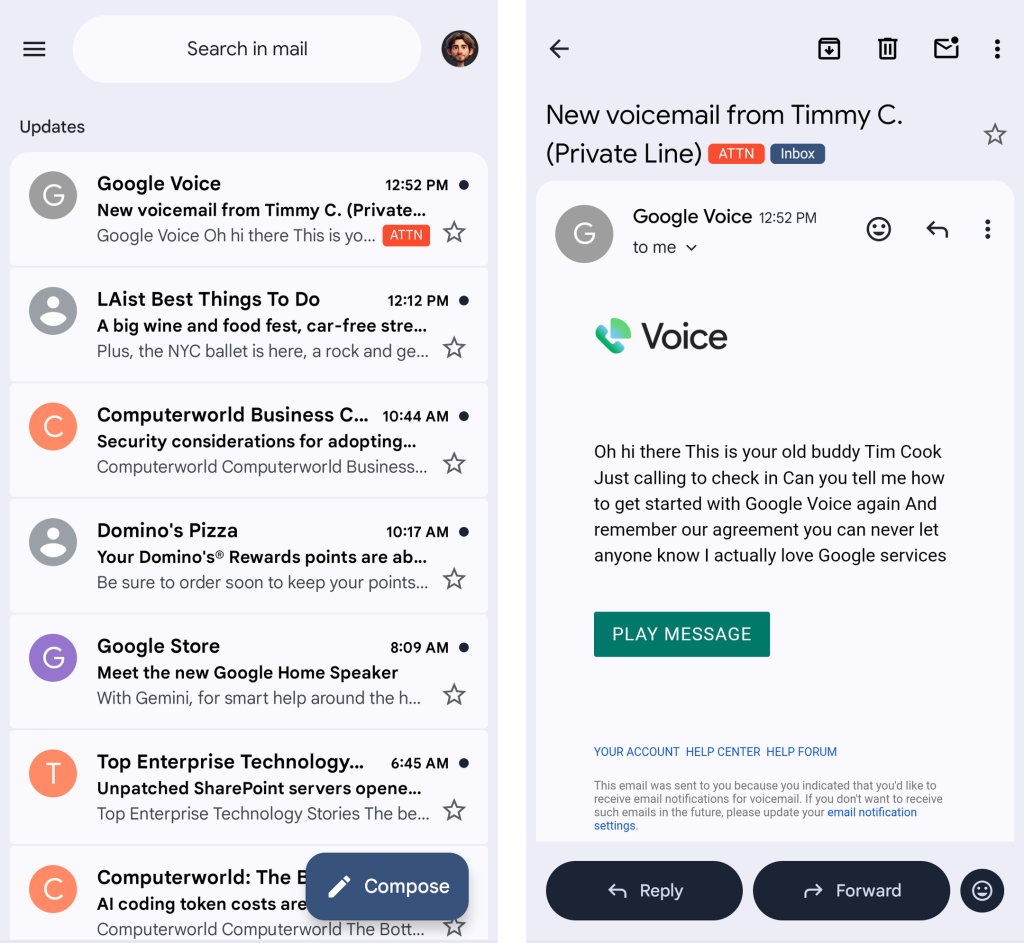
Any labels associated with an email will show up both in your inbox and when viewing the message in full.
JR Raphael / Foundry
So, for instance, if you keep tabs on stats for your company’s website, you might label all incoming emails from Google Analytics as “Web Reports.” But maybe you also have your own personal website for which you receive Analytics updates. You could label the reports from your personal website as “Web Reports,” too, and then add a second label of either “Work” or “Personal” onto every message to create a distinction between the two types.
On the Gmail desktop website, the easiest way to create a label is to click the label icon in the toolbar at the top of the screen when you’re viewing a message or when you’ve selected something from a message list — then start typing whatever name you want to use for the label. Once you’re done, simply hit Enter, and Gmail will create the label for you and apply it to the message.
This story originally appeared on Computerworld

