


Anything that takes you to another area of the operating system will still require authentication, of course, but the simple on-off tiles can be tapped and toggled by anyone who’s holding the phone.
More often than not, that’s an added convenience. Say you want to flip on your phone’s Bluetooth for a fast connection, for instance, or flash on your flashlight to find that stray cheesy poof that slipped out of your sticky grabbers and fell onto the floor. Being able to do those things with a couple quick taps and without having to unlock your phone can certainly be handy.
At the same time, though, it can also allow someone else to do something like change your phone’s sound settings, disable its Wi-Fi connection, or even put it into airplane mode. And if you’re really aiming for the tightest security available, you probably don’t want that sort of stuff to be possible.
Here’s the good news: If you’ve got a device with a reasonably recent Android version, you can take control and turn at least some of those controls off in the lock screen environment. With Android 12 and up, march into the Display section of your Android settings and tap “Lock screen.” Turn the toggle next to the “Use device controls” option into the off position, then make a celebratory squawking sound and get yourself a soda.
With Samsung phones, you’ll instead need to head into the Lock Screen section of your settings and tap the line labeled “Secure lock settings.” There, you’ll find an option to “Lock network and security,” which prevents any network-related toggles from being used in that context.
Android security setting #9: NFC protection
While we’re thinking about your lock screen, take two seconds to secure any digital transfer mechanisms connected to your phone and make sure they’re available only when your device is unlocked.
It’s one of the most obvious-seeming Android settings, and yet, if you don’t actively enable it, it won’t be present — and everything from credit cards to locally stored data could be significantly more susceptible to theft as a result.
This option’s present only in Google’s core Android software and not, unfortunately, in Samsung’s heavily modified implementation of the operating system.
If you’ve got a Pixel or another phone that’s using a more unadulterated Android setup, though, search your system settings for NFC and look for the line labeled “Require device unlock for NFC.” Flip the toggle next to it into the on position, then rest easy knowing no manner of wireless transfer can occur when your device is locked.
Android security setting #10: Extend Unlock
Security is only useful if you actually use it — and given the extra level of inconvenience it often adds into our lives, it’s all too easy to let our guards down and get lazy after a while.
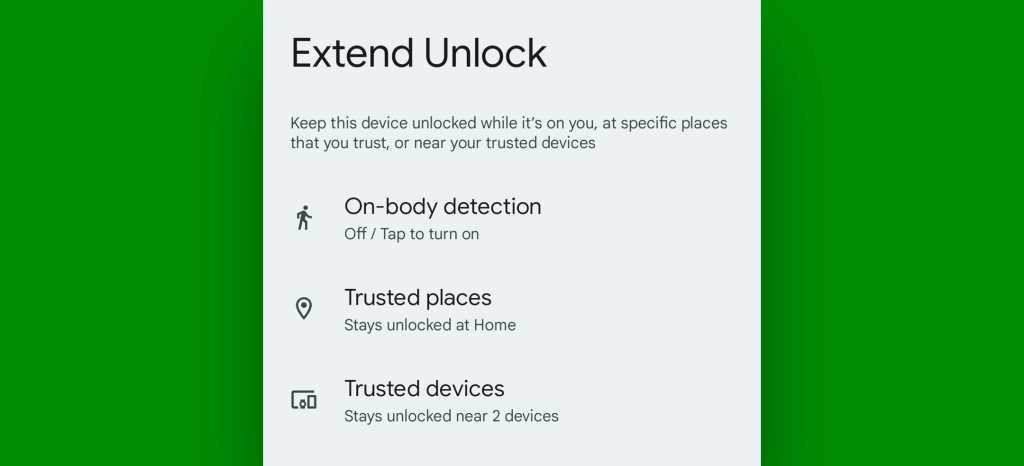
Android’s Extend Unlock feature (known as Smart Lock until Google recently renamed it to drive us all completely batty) is designed to counteract that tendency by making security a teensy bit less annoying. It can let you automatically keep your phone unlocked whenever you’re in a trusted place — like your home, your office, or that weird-smelling restaurant where you eat barbeque sandwiches almost disgustingly often — or even when you’re connected to a trusted Bluetooth device, like a smartwatch, some earbuds, or your car’s audio system.
JR Raphael, IDG
The exact placement of this system can vary considerably, so the simplest thing to do is to search your system settings for the word extend to find it and explore all the available possibilities.
And if you ever find the Trusted Places part of Smart Lock Extend Unlock isn’t working reliably, by the way, here’s the 60-second fix.
Android security setting #11: Two-factor authentication
This next one’s technically a Google account security option and not specific to Android, but it’s very much connected to Android and your overall smartphone experience.
You know what two-factor authentication is by now, right? And you’re using it everywhere you can — especially on your Google account, which is probably associated with all sorts of sensitive data? RIGHT?!
If you aren’t, by golly, now’s the time to start. Hustle over to this official Google 2FA settings page and follow the steps to set things up.
For most people, I’d recommend using your phone’s own “Security Key” option as the default method, if it’s available, followed by “Google prompts” and an authenticator app as secondary methods. For that last part, you’ll need to download and set up an app like Google’s own Authenticator or the more flexible Authy to generate your sign-in codes.
If you really want to take your Google account security to the max, you can also go a step further and set up a Google passkey on your phone for even stronger security — or purchase a specific standalone hardware key that’ll control the process and be required for any successful sign-in to occur.
It’ll add an extra step into your sign-in sequence, but this is one area where the minor inconvenience is very much worth the tradeoff for enhanced protection.
Android security setting #12: Identity Check
Aside from all the steps we’ve taken to safeguard initial access to your device, a relatively recent Android security addition can create an extra layer of protection in front of your phone’s most sensitive system settings.
It’s called Identity Check, and it’s a simple toggle that requires additional biometric authentication before accessing areas like passwords and your primary device password or PIN. It’ll only ask for that extra authentication if you aren’t in a known, trusted location. There’s really no reason not to enable it.
So search your system settings for Identity Check, tap the associated option, and flip its toggle into the on and active position. It’s another small piece of a sprawling security puzzle, and all of these little pieces absolutely do add up.
Android security setting #13: Lockdown mode
Provided you’re using a phone with Android 9 or higher (and if you aren’t, switching over to a current phone that actually gets active software updates should be your top security priority!), an Android setting called lockdown mode is well worth your while to investigate. Once enabled, it gives you an easy way to temporarily lock down your phone from all biometric and Extend Unlock security options — meaning only a pattern, PIN, or password can get a person past your lock screen and into your device.
The idea is that if you were ever in a situation where you thought you might be forced to unlock your phone with your fingerprint or face — be it by some sort of law enforcement agent or just by a regular ol’ hooligan — you could activate the lockdown mode and know your data couldn’t be accessed without your explicit permission. No notifications will ever show up on your lock screen while the mode is active, and that heightened level of protection will remain in place until you manually unlock your phone (even if the device is restarted).
The trick, though, is that on certain phones — including most Samsung Android devices — you have to enable the option ahead of time in order for it to be available. To confirm that it’s activated on your device, open up your Android settings, search for the word lockdown, and make sure the toggle alongside “Show lockdown option” is set to the on position.
If you’re using a current phone and don’t see any results for that search, the option is probably just automatically enabled — and you shouldn’t have to do anything to make it available.
Either way, once the system’s up and running, you should see a command labeled either “Lockdown” or “Lockdown mode” within the standard system power menu — the thing that pops up whenever you press and hold your phone’s power button (or press and hold the power button and volume-up button together, on certain devices).
With any luck, you’ll never need it. But it’s a good added layer of protection to have available, just in case — and now you know how to find it.
Android security setting #14: App pinning
One of Android’s most practical settings is also one of its most hidden. I’m talkin’ about app pinning — something introduced way back in 2014’s Lollipop era and rarely mentioned since.
App pinning makes it possible for you to lock a single app or process to your phone and then require a password or fingerprint authentication before anything else can be accessed. It can be invaluable when you pass your phone off to a friend or colleague and want to be sure they don’t accidentally (or maybe not so accidentally) get into something they shouldn’t.
To use app pinning, you’ll first need to activate it by opening that trusty ol’ Security & Privacy section in your Android settings and then finding the line labeled “App pinning,” “Screen pinning,” or possibly “Pin app” or “Pin windows.” (You’ll probably have to tap a line labeled “Advanced settings,” “More security settings,” “More security & privacy,” or “Other security settings” to reveal it.) Tap those words, whatever they are on your specific device, then turn the feature on (via either the “App pinning” or “Allow apps to be pinned” option) and also make sure the toggle to require authentication before unpinning is activated within that same area.
Then, the next time you’re about to place your phone in someone else’s grubby grabbers, first open up your system Overview interface — either by swiping up from the bottom of your screen and holding your finger down, if you’re using Android’s gesture system, or by pressing the square-shaped button, if you’re still hangin’ onto the old-school three-button nav setup.
On any phone running reasonably recent software, you’ll then tap the icon of the app you want to pin, directly above its card in that Overview area. And there, you should see the Pin option.

JR Raphael, IDG
Once you’ve tapped that, you won’t be able to switch apps, go back to your home screen, look at notifications, or do anything else until you exit the pinning and unlock the device. To do that, with gestures, you’ll swipe up from the bottom of your screen and hold your finger down — and with the old three-button nav setup, you’ll press the Back and Overview buttons at the same time.
Android security setting #15: Guest Mode
If you want to go a step further and let someone else use all parts of your phone without ever encountering your personal information or being able to mess anything up, Android has an incredible system that’ll let you do just that — with next to no ongoing effort involved.
It’s called Guest Mode, and it’s been around since 2014, despite the fact that most folks have completely forgotten about it. For a detailed walkthrough of what it’s all about and how you can put it to use, see my separate Android Guest Mode guide.
Just note that if you have a Samsung phone, that guide won’t do you much good — as Samsung has for no apparent reason opted to remove this standard operating system element from its software (insert tangentially related soapbox rant here). On Google’s own Pixel phones and most other Android devices, though, it’ll take you all of 20 seconds to set up and get ready.
Android security setting #16: Find Hub
Whether you’ve simply misplaced your phone around the house or office or you’ve actually lost it out in the wild, always remember that Android has its own built-in mechanism for finding, ringing, locking, and even erasing a device from afar.
Like Play Protect, the Android Find Hub (formerly Find My Device) feature should be enabled by default. You can make sure by searching your system settings for Find Hub and then double-checking that the toggle next to “Allow device to be located” within that area is activated.
(Using a Samsung phone? Samsung provides its own superfluous, redundant service called Find My Mobile, but the native Google Android version will bring all of your devices — not only those made by Samsung — together into a single place, and it’s also much more versatile in how and where it’s able to work.)
Once you’ve confirmed the setting is enabled, if you ever need to track your phone down, just go to android.com/find from any browser. There’s also an official Find Hub Android app, if you have another Android device and want to keep that function standing by and ready.
As long as you’re able to sign into your Google account, you’ll be able to pinpoint your phone’s last known location on a map and manage it remotely in a matter of seconds.
Find Hub is a fantastic resource to have — but in certain situations, you might get a missing phone back even faster with the help of a fellow hominid.
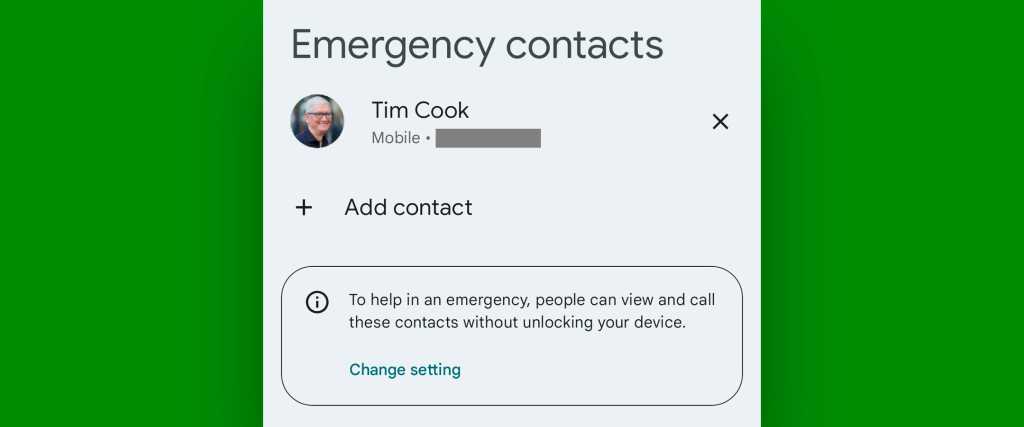
Give people a chance to do the right thing by adding an emergency contact that can be accessed and dialed with a few quick taps from your phone’s lock screen. To start, go to either the About Phone section of your Android settings or the Safety & Emergency section, if you have it, and then find and tap the line labeled either “Emergency information” or “Emergency contacts.”
Follow the prompts there to add in an emergency contact — a close friend, family member, significant other, random raccoon, or whatever makes sense for you. (Hey, I’m not here to judge.)
JR Raphael, IDG
Easy peasy, right? Well, almost: The only challenge is that the emergency contact info isn’t exactly obvious or simple to find on the lock screen — go figure — so anyone who picks up your phone might not even notice it.
But wait! You can increase the odds considerably with one extra step: Head into the Display section of your settings and tap “Lock screen” (which may be hidden within an “Advanced” subsection, depending on your device), then tap the line labeled “Add text on lock screen.”
However you get there, once you find yourself facing a blank space for text input, enter something along the lines of: “If you’ve found this phone, please swipe up and then tap ‘Emergency’ and slide the bar alongside ‘Emergency info’ to notify me” (or whatever specific instructions make sense for the required steps on your specific device).
That message will then always show up on your lock screen — and as an added bonus, if there’s ever an actual emergency, you’ll be ready for that, too.
Using a Samsung phone? For no apparent reason (sensing a theme here?), Samsung has removed the direct emergency contact system and instead offers only the ability to place plain text on your lock screen. You can find that, though, by making your way into the Lock Screen section of your system settings and looking for the line labeled “Contact information.”
You can then type your emergency contact info directly into that area and hope that someone finds it and dials it from their own phone if the situation ever comes up.
Android security setting #18: Theft detection
Our next four Android security settings revolve around the worst-case scenario of someone deliberately swiping your device and then trying to get at the data — whether yours or your company’s — that’s stored within it.
As of October 2024, Google’s added a trio of new Android theft detection security features that are designed exactly with this possibility in mind. The first, Theft Detection Lock, relies on a combination of your phone’s sensors and AI to identify motions commonly associated with a phone being forcefully stolen.
If such actions occur, Android instantly and automatically locks the device on your behalf.
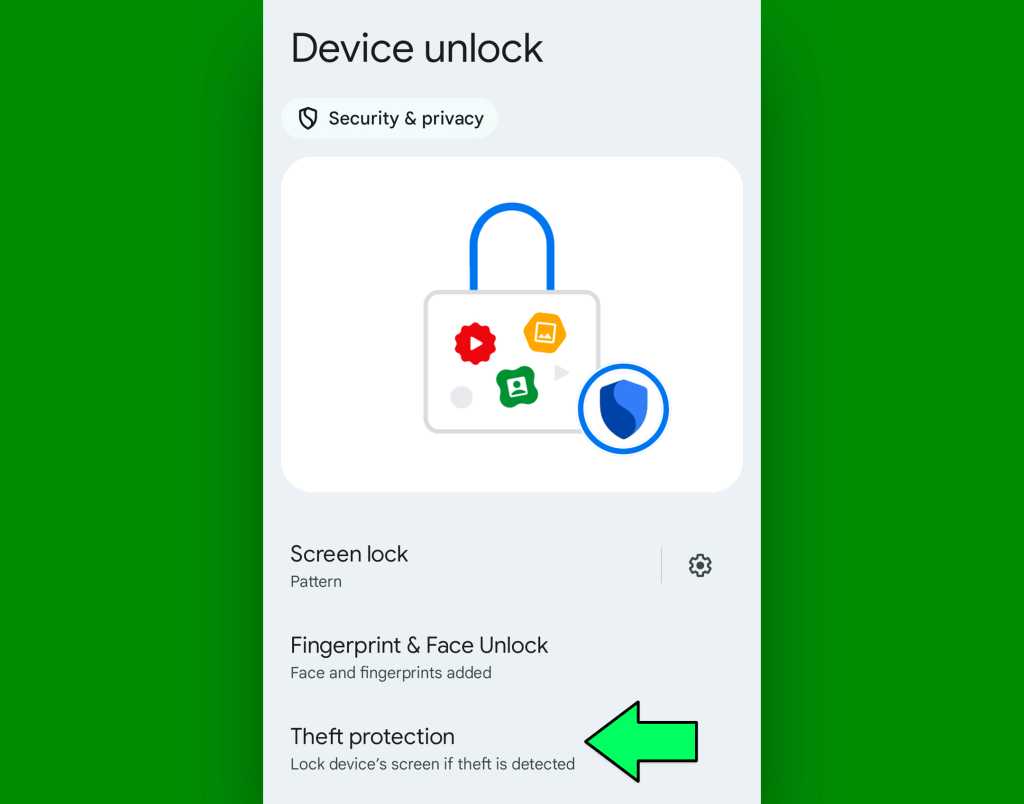
The option should be present on all Android devices running 2019’s Android 10 software and higher. To find it, head into the Security & Privacy section of your system settings, tap “Device unlock,” and look for the “Theft protection” section within that area. In Samsung’s Android implementation, you’ll instead go into the Security & Privacy section and then tap “Lost device protection” followed by “Theft protection.”
JR Raphael, IDG
However you get there, tap that line — then make sure the option for “Theft Detection Lock” is on and active to enable the added protection.
Android security setting #19: Offline locking
Going hand in hand with that Theft Detection Lock option is another relatively new Android security feature called Offline Device Lock.
It looks for on-screen behaviors that make it look like a phone’s fallen into the wrong hands — like an unusually long period of Wi-Fi and mobile data disconnection or a series of failed attempts at getting past your lock screen. And if any such activity is detected, it automatically locks the device to keep any intruders out.
This option is in that same “Theft protection” section of Android’s Security & Privacy settings. All you’ve gotta do is activate it.
Android security setting #20: Remote locking
One last late-2024 addition to the Android security picture is something Google calls Remote Lock. It’s essentially an extra way to manually and quickly lock down your device from afar without having to use the full-fledged Android Find Hub system we went over a moment ago.
Once more, look in that “Theft protection” menu to find and enable the feature.
Android security setting #21: SIM card safeguard
If your phone ever falls into the wrong hands and its finder has less-than-honorable intentions, you want to do anything you can to keep that person from being able to take over the device entirely.
And you’d never know it, but Android has an often-off-by-default option designed to protect you in exactly that way. Or, at least, some Android devices do.
Start by searching your system settings for SIM. Depending on your device and your specific configuration, you might see a couple of different options appear in the results — anything from “Confirm SIM deletion” to “Lock eSIM settings” or “SIM lock.” If you see any of those options, tap ’em and then follow the subsequent steps to secure that SIM.
It’s almost shockingly easy to handle — so long as you have the foresight to protect yourself before the need actually arises.
Android security setting #22: The security supermode
Last but not least, if you find yourself wishing there were just a single simple switch that can enable all of the most advisable maximum-protection Android security settings for you in one fell swoop, this final option is exactly what the nerd doctor ordered.
It’s a sweeping security option called Android Advanced Protection, and it’s available as of Google’s 2025 Android 16 update.
With Advanced Protection, you quite literally just flip one switch, and your device automatically activates a slew of security settings for you — including many (but not all!) of the options we’ve just gone over.
You can find the option by searching your system settings for Advanced Protection.
Flipping the switch within that section is a powerful start. But it’s still worth considering all the individual options in this collection, as some of the settings above go beyond what Advanced Protection will cover.
One more thing about Android security …
Now that you’ve got your settings optimized and in order, set aside a bit of time to perform an Android security checkup. It’s an 18-step process I’ve created for the state of security on both your phone and your broader Google account — and it’s well worth doing at least once a year.
The best part of this checkup? It’s completely painless — and unlike with most preventative exams, removing your pants is entirely optional.
Get even more Googley knowledge with my Android Intelligence newsletter — three new things to try every Friday and six instant power-ups in your inbox today.
This story originally appeared on Computerworld

