


Improving your Samsung Galaxy’s battery life only takes a few tweaks here and there.
There are very few things that are as frustrating as watching your phone’s battery percentage drop below the halfway point before lunchtime, especially when you rely on your phone for work, staying in touch with family, navigation and entertainment. If your Samsung Galaxy isn’t lasting as long as it used to, the good news is that it’s rarely the hardware itself.
Battery performance is influenced by a wide range of factors, from your device settings to apps running in the background, your screen habits and even the environment you’re in. If you’re outside and the weather is really cold, you place your phone unlocked on your desk with the screen on at max brightness, or there are apps constantly refreshing in the background, your battery can quietly drain without you doing much.
Well, before you take your phone to the closest service shop to swap out that battery, there are a few practical, no-cost adjustments you can make right now to get more use out of every charge. None of these steps require technical expertise on your part and you won’t need to spend money on new hardware to see a difference. From software tweaks to display settings and a quick health check, there are things that actually work.
How software updates and background apps affect Samsung Galaxy battery life
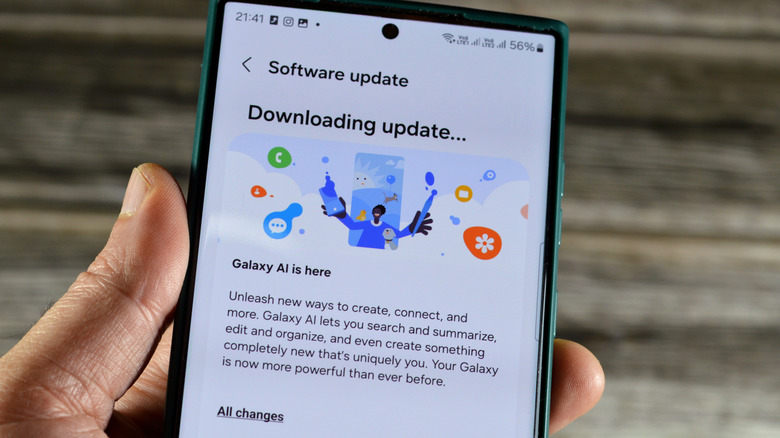
One of the simplest things you can do to protect your battery is to keep your device and apps up to date. Samsung regularly rolls out software updates that include efficiency fixes and optimizations designed to reduce unnecessary power drains. Skipping these updates means missing out on improvements that could extend your battery life. We know that ignoring those prompts is quite tempting, especially when they pop up in the middle of the day, but you really should set some time aside and allow it to run sooner rather than later.
Beyond updates, background apps are often the real reason behind a fast-draining battery. Samsung’s Battery and Device Care menu lets you see exactly which apps are consuming power even when you’re not using them.
To stop this, put rarely used apps into deep sleep. Here’s how to do this:
-
Go to Settings > Battery > Background usage limits.
-
Add any apps you don’t want running or consuming resources until you open them again.
These apps placed in deep sleep won’t run in the background at all, which can cut down on unnecessary battery drain. In the Battery menu, you’ll see exactly how much each app impacted your battery life on any given day. Also, if you flip on the Power savings option in the menu, background apps will be restricted from using Wi-Fi and mobile data.
Since you’re in the Battery menu already, you could also flip on Battery protection. Once this feature is turned on, you can choose how you want to charge your phone, whether from an outlet or when you’re away from one. You can go from the Basic setting (which stops charging your phone when the battery hits 100 percent and restarts once the level drops below 95 percent) to Maximum (which lets you stop charging at a level of your choosing between 80 and 95 percent).
How display settings impact the battery levels on your Samsung Galaxy
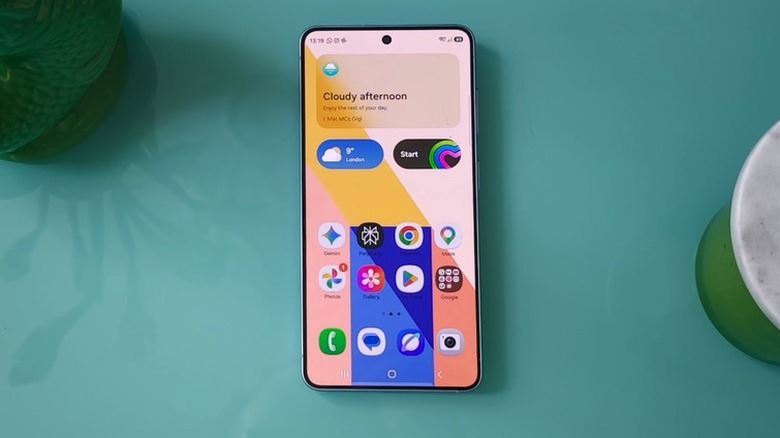
Your screen is typically the biggest consumer of battery power, especially when keeping the brightness levels high. A few adjustments can add up to significant battery savings.
First off, start with Adaptive Brightness, which automatically adjusts your screen based on the lighting around you instead of running at a fixed, often unnecessarily high level. You should also set the screen timeout setting to a lower value. Both settings can be found in Settings > Display.
You could also switch your performance profile from Standard to Light. This setting prioritizes battery life over processing speed. Samsung notes this feature doesn’t apply to games. You can find this in Settings > Device Care right under the Performance section.
Also worth noting, if you’re comfortable with a bit of a trade-off, some Galaxy models let you limit the display’s refresh rate from 120Hz to 60Hz. This can have a high impact on your battery life, though scrolling and animations will feel less smooth. You can go to Settings > Display > Motion smoothness to make this adjustment.
How connectivity settings and battery health affect Samsung Galaxy performance
Connectivity features left running in the background are also going to quietly drain your battery. Bluetooth, Wi-Fi and location services all consume a lot of power even when you’re not actively using them. Switching them off when they’re not needed is an easy win with no real downside. Just swipe down, locate the icons for each feature and tap the ones you aren’t using.
Speaking of battery health, you should definitely run a check on that. Here’s what you need to do:
-
Open the Samsung Members app and tap Support.
-
Right under Phone diagnostics, find and click the Get started button.
-
You can let it run a full diagnostic or stop the process and then select Battery status.
-
Review the results. They’ll show as Normal, Weak or Bad.
It’s all good if the results are Normal, but any of the others indicate your phone’s battery life has degraded enough that no amount of settings optimization will fully solve the problem. At this point, you should consider a professional replacement. Sometimes, depending on how long you’ve had the phone, this will be covered under warranty.
Extending your Samsung Galaxy’s battery life doesn’t always require replacing anything or sacrificing how you use your phone day to day. Updating your software, managing background apps, adjusting your display and turning off unused connectivity features can add hours back to your battery life.
This story originally appeared on Engadget

