


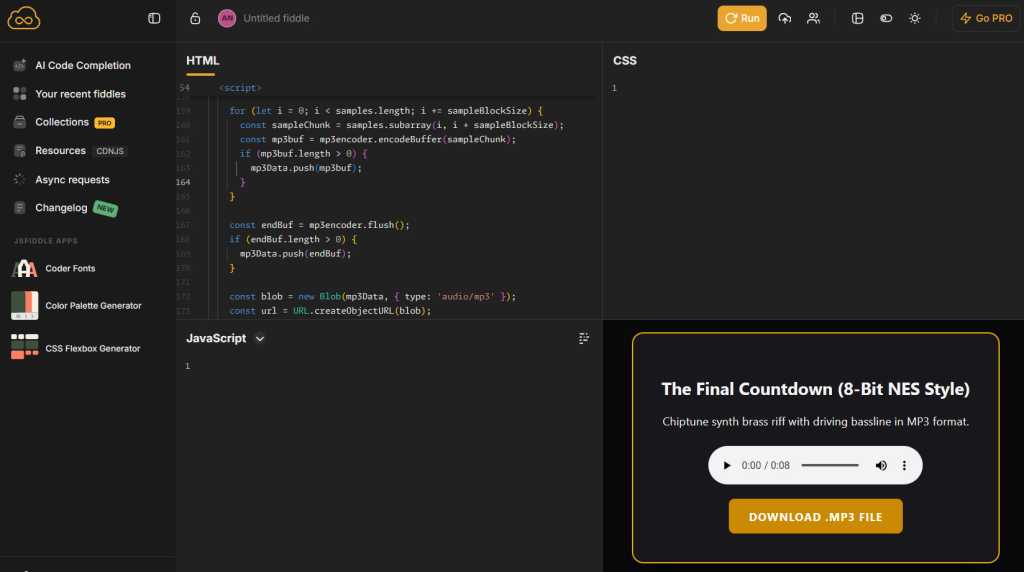
Tap or click into the “HTML” field, then paste in the code from your clipboard (by long-pressing any open space, on Android, and selecting “Paste” from the menu that appears). Click or tap the “Run” button, and — ta-da: You’ll see a player to listen to your custom Gemini-generated sound and a button to download it.
JR Raphael, Foundry
Provided you like what you hear, hit the button to download the file, then head into the Sound section of your Android system settings to save it and make it available for applying as any kind of alert or ringtone. The exact steps for doing that will vary from one type of Android device to another, but on a Pixel or another phone that follows Google’s core Android interface, you’ll tap on either “Ringtone” or “Notification,” then tap “My Sounds” and tap the plus icon to import your own custom file from your phone’s local storage.
On a Samsung device, you’ll start the same way but look for the plus icon within the “Ringtone” section of the settings, then tap the “Folders” tab to find your locally downloaded files. Samsung doesn’t make it easy to add in your own custom notification sounds, annoyingly, so what you’ll have to do is open up the Google Files app, find the file you downloaded in your “Downloads” folder, then tap the three-dot icon alongside it to copy it to the folder called “Notifications.” Once the file is in that folder, it should show up as a notification noise option within the Samsung Android settings.
This story originally appeared on Computerworld

