


It’s easy to see who’s at the door without grabbing your phone.
Did you know you can connect your Ring doorbell to your TV so a live video pops up when someone rings your door? Instead of pausing your movie, scrambling for your phone and checking the Ring app, you can view your front porch directly on the big screen.
The good news is that setting this up is much simpler than you might expect. The catch, however, is that compatibility varies depending on the television you own. While Amazon Fire TVs offer the most seamless integration out of the box, other brands can still deliver the exact same functionality with a quick workaround.
What screens work with a Ring doorbell?
Because Ring is owned by Amazon, it integrates most naturally with Amazon’s ecosystem. There are quite a few screens that offer native support, starting with smart displays like the Echo Show 5, 8, 10 and 15. The same seamless integration extends to the Fire TV family, including the Fire TV Stick and Fire TV Cube.
Beyond Amazon hardware, you can view your live feed on any iOS and Android mobile devices via the Ring app. Samsung’s 2022 and newer Smart TVs also support Ring integration through the SmartThings platform. If your TV isn’t on the list, you don’t have to worry because there are some workarounds.
What TV works with a Ring doorbell?
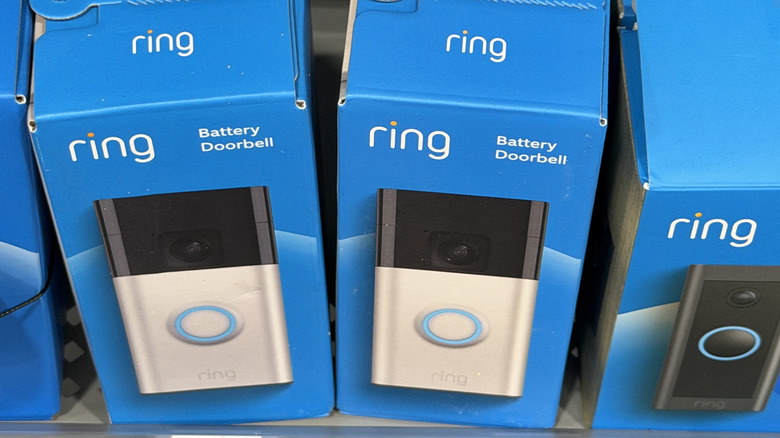
The best integration between the Ring doorbell and a smart TV comes from models running Amazon’s Fire OS. The brand list includes Amazon, Panasonic, TCL, Hisense, Toshiba and Insignia. In this situation, the Fire TV operating system will link directly to your Ring account through the Alexa app.
Samsung’s Smart TVs run on Tizen OS, not Amazon’s platform, but 2022 and newer models feature a built-in SmartThings hub that lets you connect Ring through the SmartThings ecosystem.
If you don’t have either a Fire TV or a Samsung one, you can use a Fire TV Stick, or the Fire TV Cube and plug it into your TV’s HDMI port. This instantly gives that TV the same native Ring integration, picture-in-picture alerts and Alexa voice commands.
How to connect your Ring doorbell to a smart TV
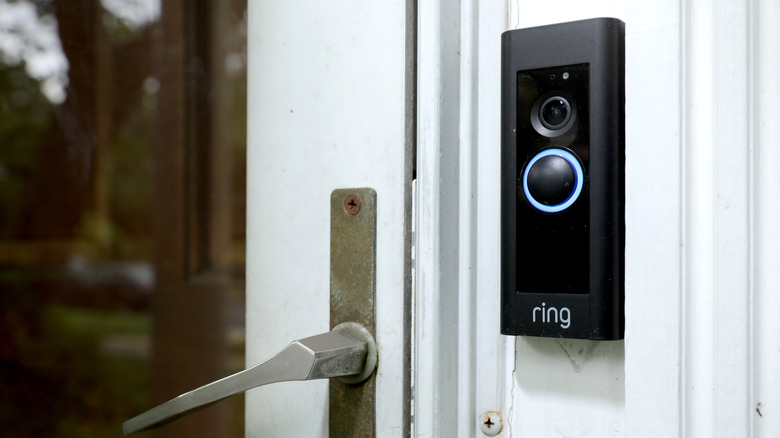
Fire TV offers a straightforward Ring setup whether you’re using an actual TV running this OS or a Fire TV Stick.
-
Launch the Alexa app on your smartphone
-
Go to More > Skills & Games, search for Ring and tap Enable Skill.
-
Sign in to your Ring account to link both platforms.
-
Tap Discover Devices when prompted.
-
Go to Devices > Cameras in the Alexa app, select the Ring doorbell and toggle on Doorbell Press Announcements and Motion Announcements.
Once you do this, a picture-in-picture feed will automatically appear on your TV whenever someone rings the bell. You can also pull a live feed at any time using Alexa voice commands.
If you’re using a Fire TV Stick or Cube with any TV, you’re going to follow pretty much the same steps to get Ring alerts to your TV.
When it comes to Samsung SmartThings, you have a few extra steps. Here’s how to set it up:
-
Open the SmartThings app on your phone.
-
Go to Devices > Add Device, tap Partner Devices, and search for Ring.
-
You’ll need to log in to your Ring account to authorize the connection.
-
Next, you’ll need to launch the SmartThings app on your TV and enable Ring notifications.
-
Then, in the Ring app, turn on Ring Alerts and Motion Alerts for your doorbell.
Now, whenever motion is detected or your doorbell is pressed, a notification will appear on your Samsung TV.
What happens if you don’t have any of these? In that situation, screen mirroring is your best bet. You can open the live feed in the Ring app on your smartphone and mirror the screen to your TV. The catch here is that it’s not going to be as efficient. The whole point of going through all these steps is to be able to see who’s outside your door when someone rings the door. If you’re already launching the Ring app, you might as well just check it on your phone.
This story originally appeared on Engadget

